> ## Documentation Index
> Fetch the complete documentation index at: https://docs.blockworks.com/llms.txt
> Use this file to discover all available pages before exploring further.
# Telegram Alerts
> Deliver monitoring alerts into a Telegram direct message or group chat: connecting the bot, connection states, and troubleshooting.
Telegram alerts deliver matched developments straight into a Telegram chat, with no email, Slack,
or webhook infrastructure to run. Alerts can be sent two ways:
* **Direct Message.** The Blockworks alert bot messages you directly.
* **Group.** The Blockworks alert bot posts into a Telegram group you choose, so a whole team sees each alert.
Connecting Telegram is a one-time setup per monitoring view. You pick a destination, open a
single-use link that hands off to Telegram, complete a short confirmation there, then verify the
connection back in the app.
Each Telegram connection is tied to a single monitoring view. To send alerts from several views
into the same chat, connect each view to that chat individually.
Group size is limited. Only groups smaller than **10** members can receive alerts.
## Connecting Telegram
Telegram delivery is configured in the [Intel app](https://app.blockworks.com), not
through the API: when you create or edit a monitoring view, the **Alerts & Access** step is where
you enable Telegram, alongside email, Slack, and [webhook](/api-reference/monitoring/webhooks)
delivery. The **Real-Time / Daily / Weekly** control at the top of **Alert Delivery** sets how
often alerts are sent.
On the view's **Alerts & Access** step, switch the **Telegram** toggle on. A **Select Connection
Type** row appears with two buttons: **Group** and **Direct Message**.
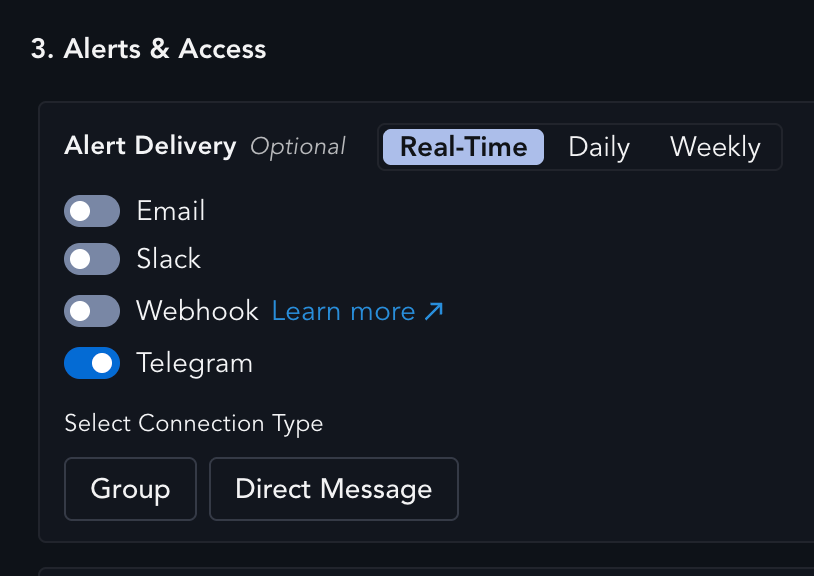 Pick where alerts should go. The choice generates a one-time Telegram deep link unique to this
view and reveals a **Click to Connect Telegram** button.
Pick where alerts should go. The choice generates a one-time Telegram deep link unique to this
view and reveals a **Click to Connect Telegram** button.
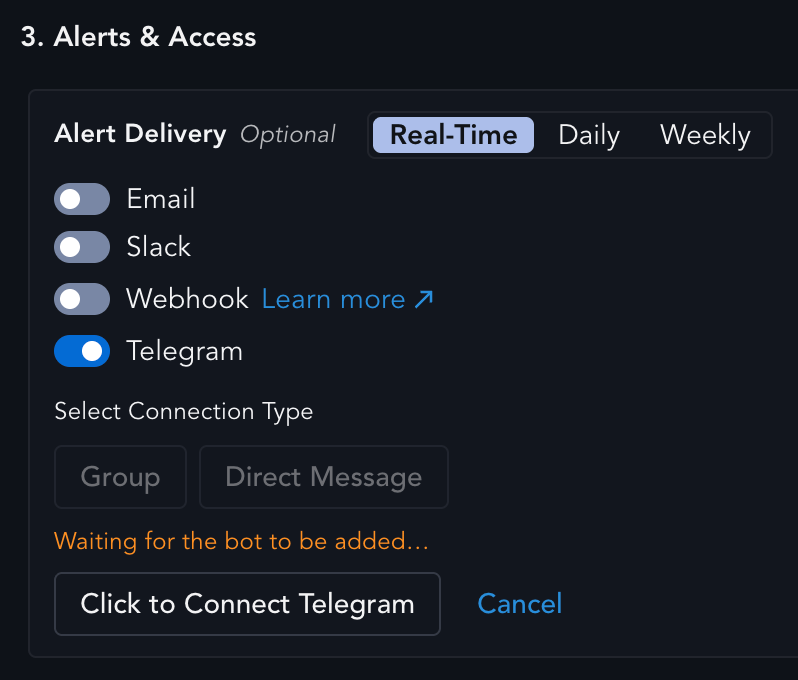 The deep link is single-use and expires after a short window. If you do not finish the
connection in time, the status shows an error; select **Cancel** and start over to generate a
fresh link.
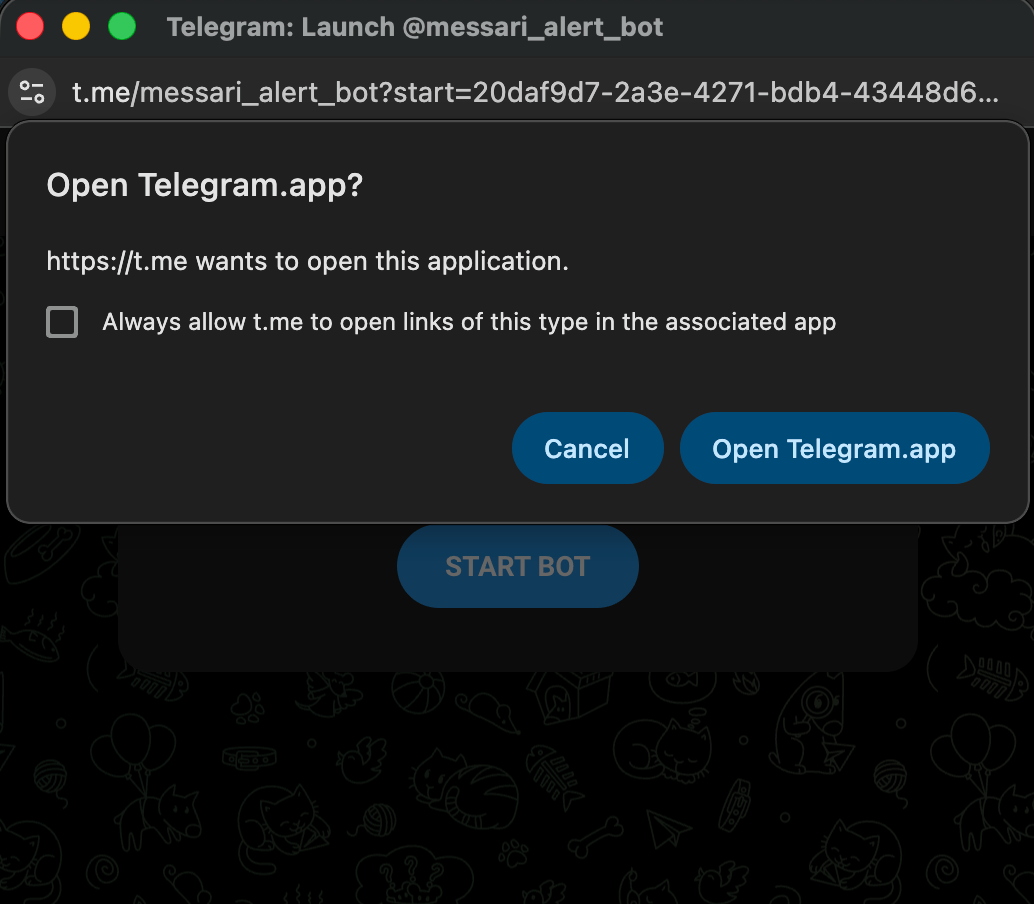
Select **Click to Connect Telegram**. A popup opens Telegram, using the desktop or mobile app if
it is installed and Telegram Web otherwise, with the Blockworks alert bot (`@messari_alert_bot`)
ready to be messaged directly or added to a group.
The deep link is single-use and expires after a short window. If you do not finish the
connection in time, the status shows an error; select **Cancel** and start over to generate a
fresh link.
Select **Click to Connect Telegram**. A popup opens Telegram, using the desktop or mobile app if
it is installed and Telegram Web otherwise, with the Blockworks alert bot (`@messari_alert_bot`)
ready to be messaged directly or added to a group.
 What you do next depends on the destination you picked.
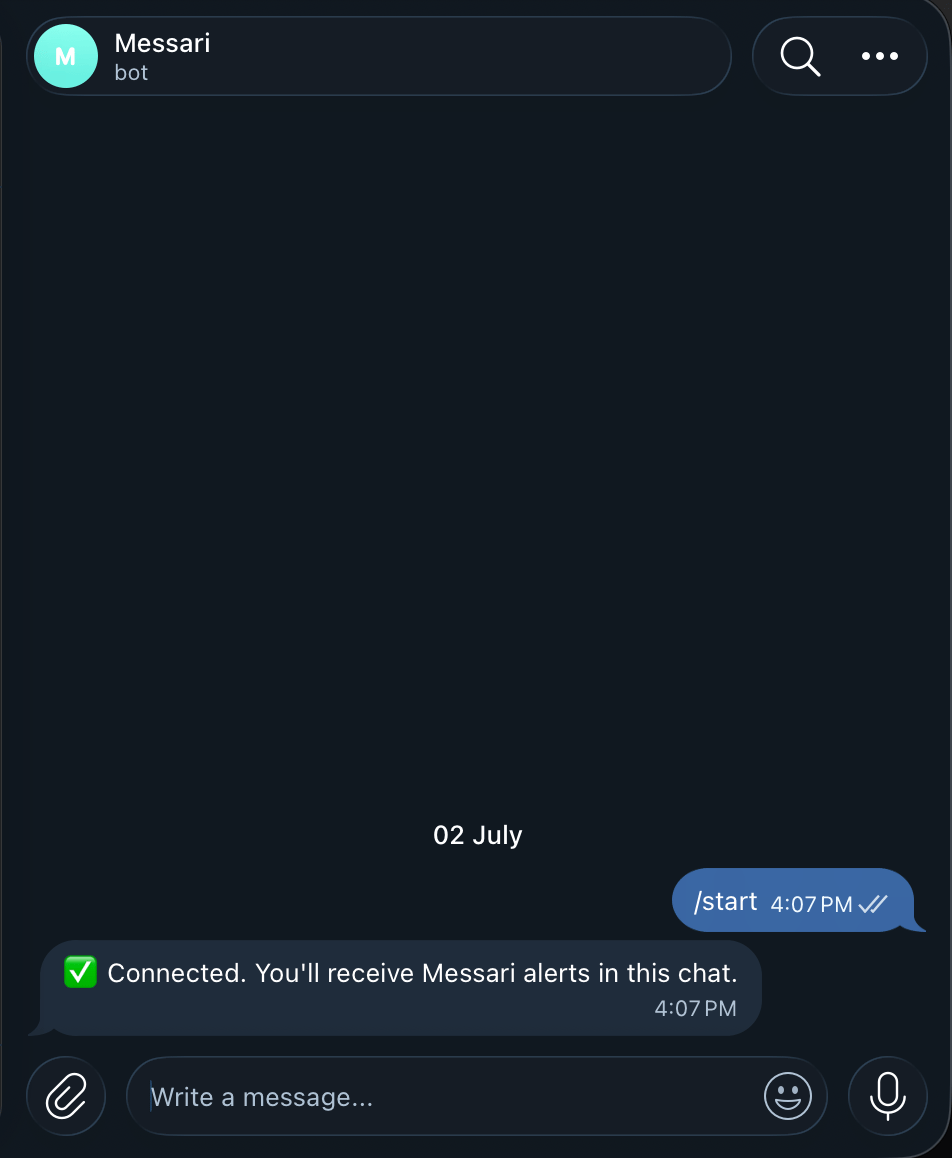
The bot chat opens with a **START BOT** button. Select it (this sends `/start`) and the bot
replies to confirm the chat is connected.
What you do next depends on the destination you picked.
The bot chat opens with a **START BOT** button. Select it (this sends `/start`) and the bot
replies to confirm the chat is connected.
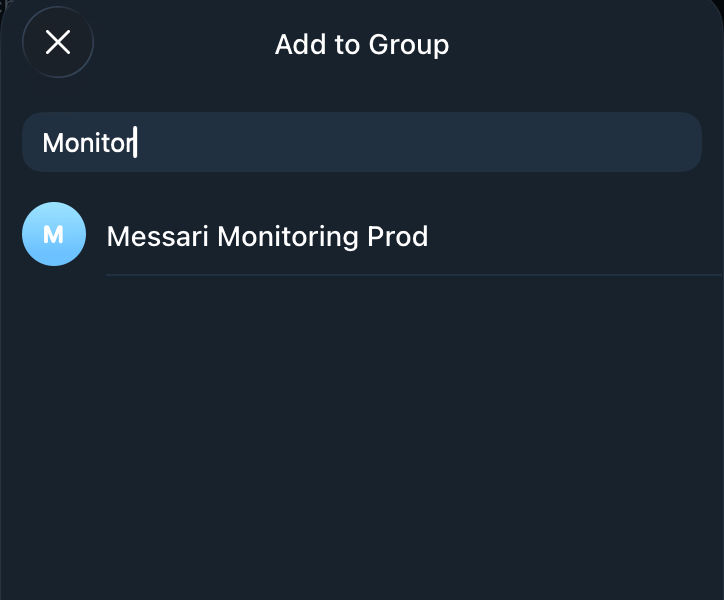
 Telegram opens an **Add to Group** picker. Search for your group and select it.
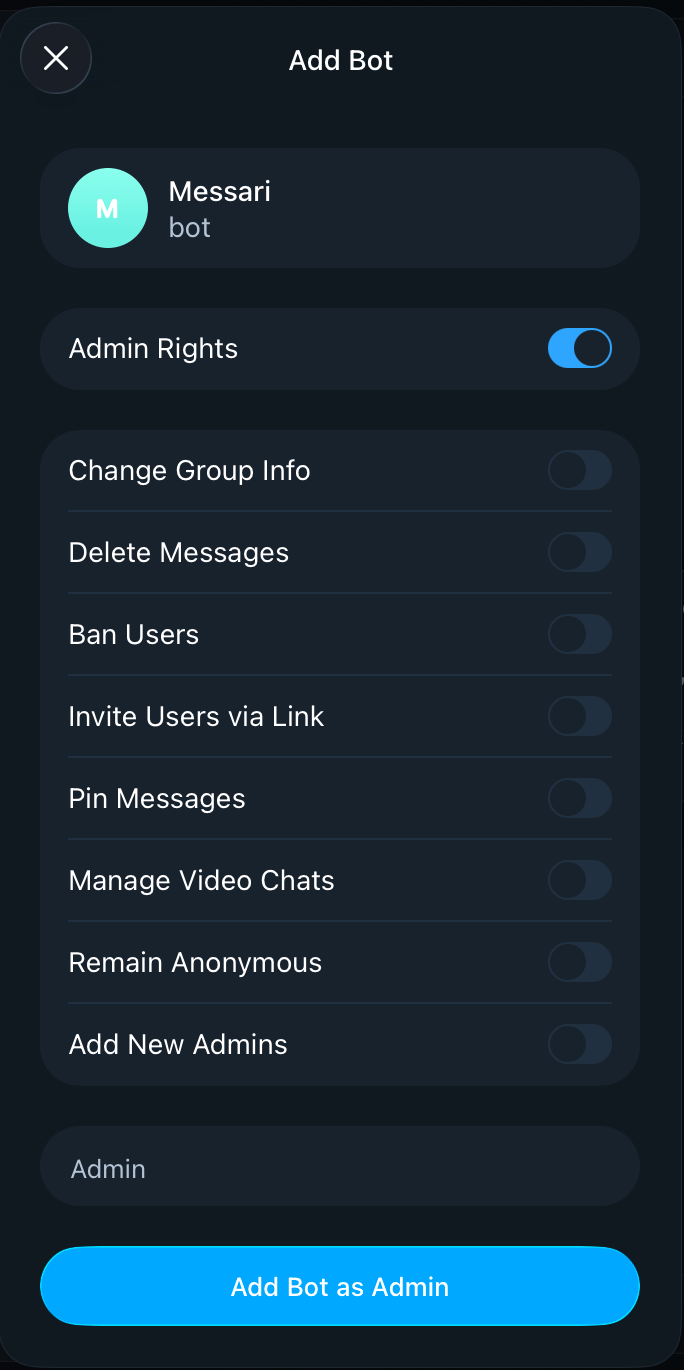
 On the **Add Bot** screen that follows, leave **Admin Rights** switched on and select
**Add Bot as Admin**.
On the **Add Bot** screen that follows, leave **Admin Rights** switched on and select
**Add Bot as Admin**.
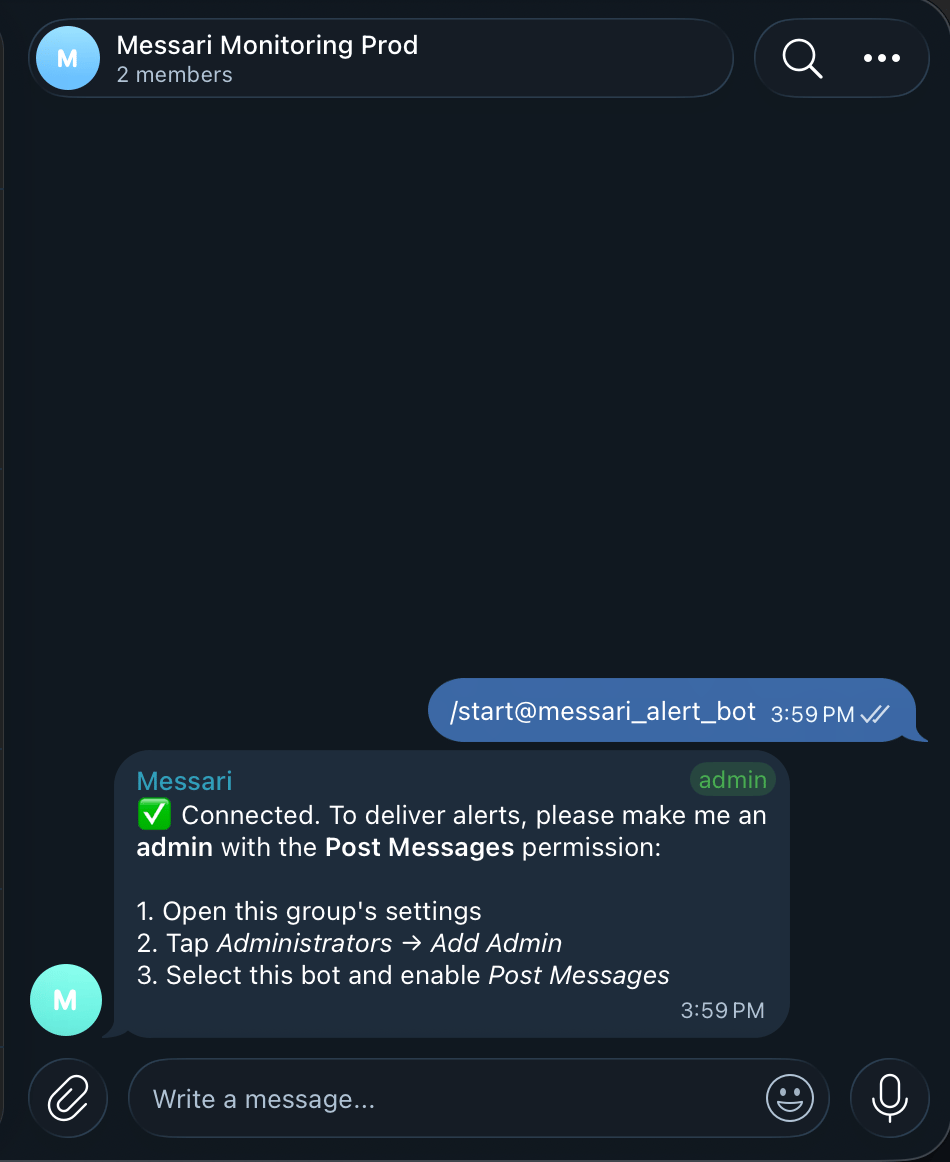
 The bot posts in the group once it joins. If it still needs admin rights, its message spells
out how to grant them: open the group's settings, tap **Administrators** then **Add Admin**,
select the bot, and enable **Post Messages**.
The bot posts in the group once it joins. If it still needs admin rights, its message spells
out how to grant them: open the group's settings, tap **Administrators** then **Add Admin**,
select the bot, and enable **Post Messages**.
 Admin rights with the **Post Messages** permission are required for groups. A bot that
joins as a regular member stays pending and cannot deliver alerts.
Back in the app, select **Check Connection**. The status line reports where things stand, so use
it to tell whether Telegram is fully wired up or still waiting on a step.
Admin rights with the **Post Messages** permission are required for groups. A bot that
joins as a regular member stays pending and cannot deliver alerts.
Back in the app, select **Check Connection**. The status line reports where things stand, so use
it to tell whether Telegram is fully wired up or still waiting on a step.
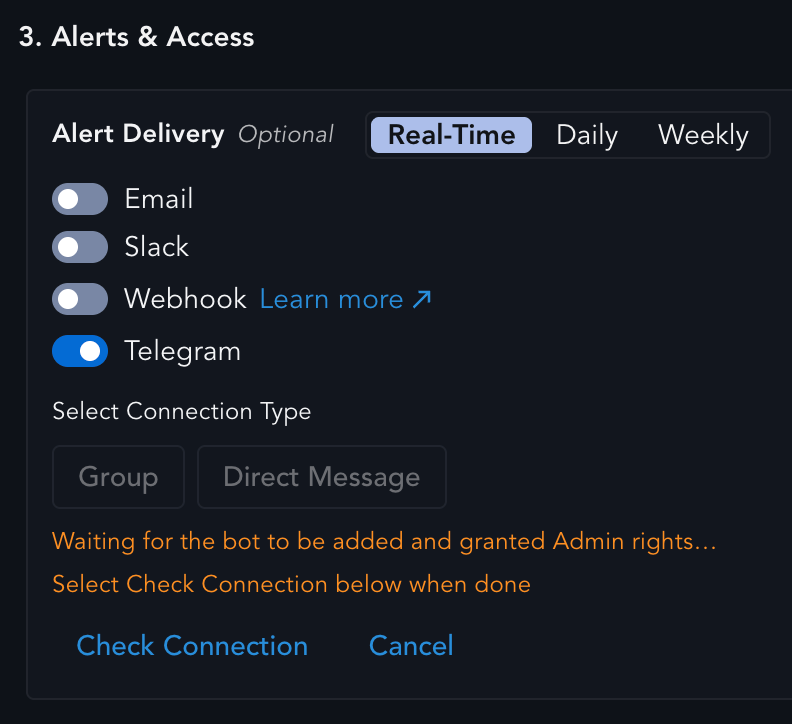 Confirmation from Telegram can take a moment to register, so if the status has not moved, wait a
couple of seconds and select **Check Connection** again. See
[Connection status](#connection-status) for what each state means.
Confirmation from Telegram can take a moment to register, so if the status has not moved, wait a
couple of seconds and select **Check Connection** again. See
[Connection status](#connection-status) for what each state means.
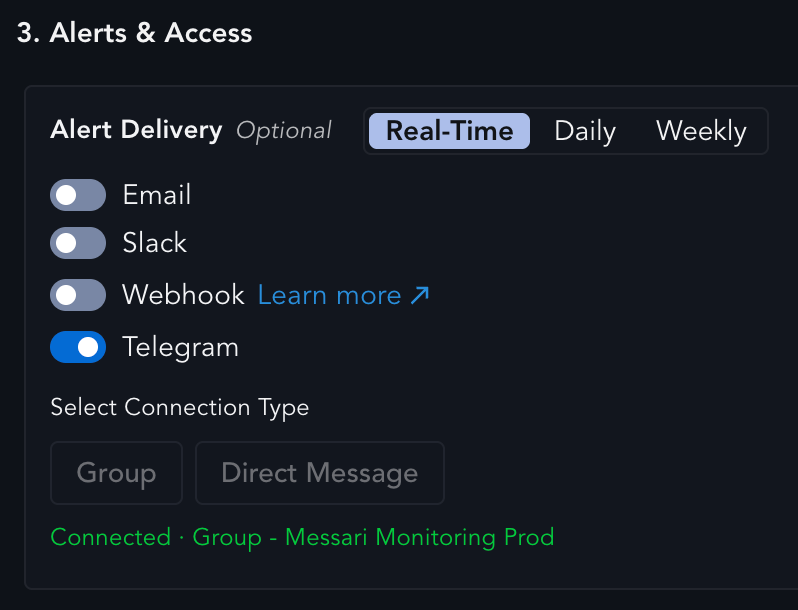 Once the status reads **Connected**, save the monitoring view. Telegram delivery is now active,
and matching alerts for this view go to the chat you connected.
## Connection status
| Status | What it means |
| ------------------------------------------------------------- | ----------------------------------------------------------------------------- |
| `Waiting for the bot to be added...` | Direct Message chosen, but the chat with the bot has not been started yet. |
| `Waiting for group Admin rights...` | Group chosen and the bot was added, but it has not been granted Admin rights. |
| `Waiting for the bot to be added and granted Admin rights...` | Group chosen, but nothing has been done in Telegram yet. |
| `Connected · Direct Message - ` | Alerts will be sent to you as a direct message. |
| `Connected · Group - ` | Alerts will be posted to the named group. |
While a connection is pending, the app also prompts you to select **Check Connection** when you are
done on the Telegram side. Nothing is delivered until the status reads **Connected**.
## Managing an existing connection
**Cancel before connecting.** At any point before the connection completes, select **Cancel** to
back out and choose a different destination, for example switching from Direct Message to a Group.
Cancelling discards the pending deep link.
**Rebinding a connected view.** Opening a view that is already connected shows a read-only
**Connected** row with the current destination and a **Start over** option. Choosing **Start over**
rebinds the view to a different chat. The existing connection keeps delivering until the new one
succeeds, so no alerts are missed during the switch.
Once the status reads **Connected**, save the monitoring view. Telegram delivery is now active,
and matching alerts for this view go to the chat you connected.
## Connection status
| Status | What it means |
| ------------------------------------------------------------- | ----------------------------------------------------------------------------- |
| `Waiting for the bot to be added...` | Direct Message chosen, but the chat with the bot has not been started yet. |
| `Waiting for group Admin rights...` | Group chosen and the bot was added, but it has not been granted Admin rights. |
| `Waiting for the bot to be added and granted Admin rights...` | Group chosen, but nothing has been done in Telegram yet. |
| `Connected · Direct Message - ` | Alerts will be sent to you as a direct message. |
| `Connected · Group - ` | Alerts will be posted to the named group. |
While a connection is pending, the app also prompts you to select **Check Connection** when you are
done on the Telegram side. Nothing is delivered until the status reads **Connected**.
## Managing an existing connection
**Cancel before connecting.** At any point before the connection completes, select **Cancel** to
back out and choose a different destination, for example switching from Direct Message to a Group.
Cancelling discards the pending deep link.
**Rebinding a connected view.** Opening a view that is already connected shows a read-only
**Connected** row with the current destination and a **Start over** option. Choosing **Start over**
rebinds the view to a different chat. The existing connection keeps delivering until the new one
succeeds, so no alerts are missed during the switch.
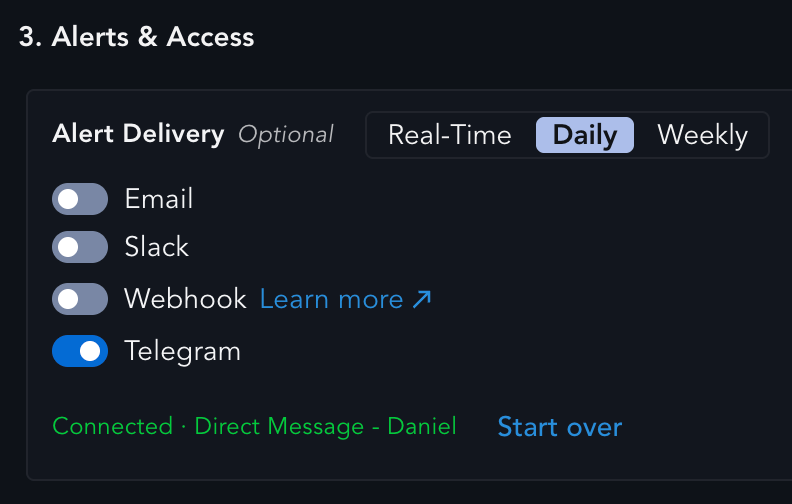 **Start over** replaces the destination for this view only. Other views connected to the same chat
are unaffected.
## Troubleshooting
The deep link is single-use and valid for a limited time. Select **Cancel**, pick the destination
again, and use the fresh **Click to Connect Telegram** link right away.
The bot joined as a regular member. Open the group's settings, tap **Administrators** then
**Add Admin**, select the bot, enable **Post Messages**, and select **Check Connection** again.
Confirmation can take a few seconds to propagate. Wait, then select **Check Connection** again.
The status only advances when the app can see the completed handoff.
Check the group size. Only groups smaller than 10 members can receive alerts. Also confirm the
view was saved after the status read **Connected**: the connection is not persisted until the
view is saved.
Connections are per view. Open the other monitoring view and run the same setup against the same
chat. Connecting a second view does not disturb the first.
**Start over** replaces the destination for this view only. Other views connected to the same chat
are unaffected.
## Troubleshooting
The deep link is single-use and valid for a limited time. Select **Cancel**, pick the destination
again, and use the fresh **Click to Connect Telegram** link right away.
The bot joined as a regular member. Open the group's settings, tap **Administrators** then
**Add Admin**, select the bot, enable **Post Messages**, and select **Check Connection** again.
Confirmation can take a few seconds to propagate. Wait, then select **Check Connection** again.
The status only advances when the app can see the completed handoff.
Check the group size. Only groups smaller than 10 members can receive alerts. Also confirm the
view was saved after the status read **Connected**: the connection is not persisted until the
view is saved.
Connections are per view. Open the other monitoring view and run the same setup against the same
chat. Connecting a second view does not disturb the first.